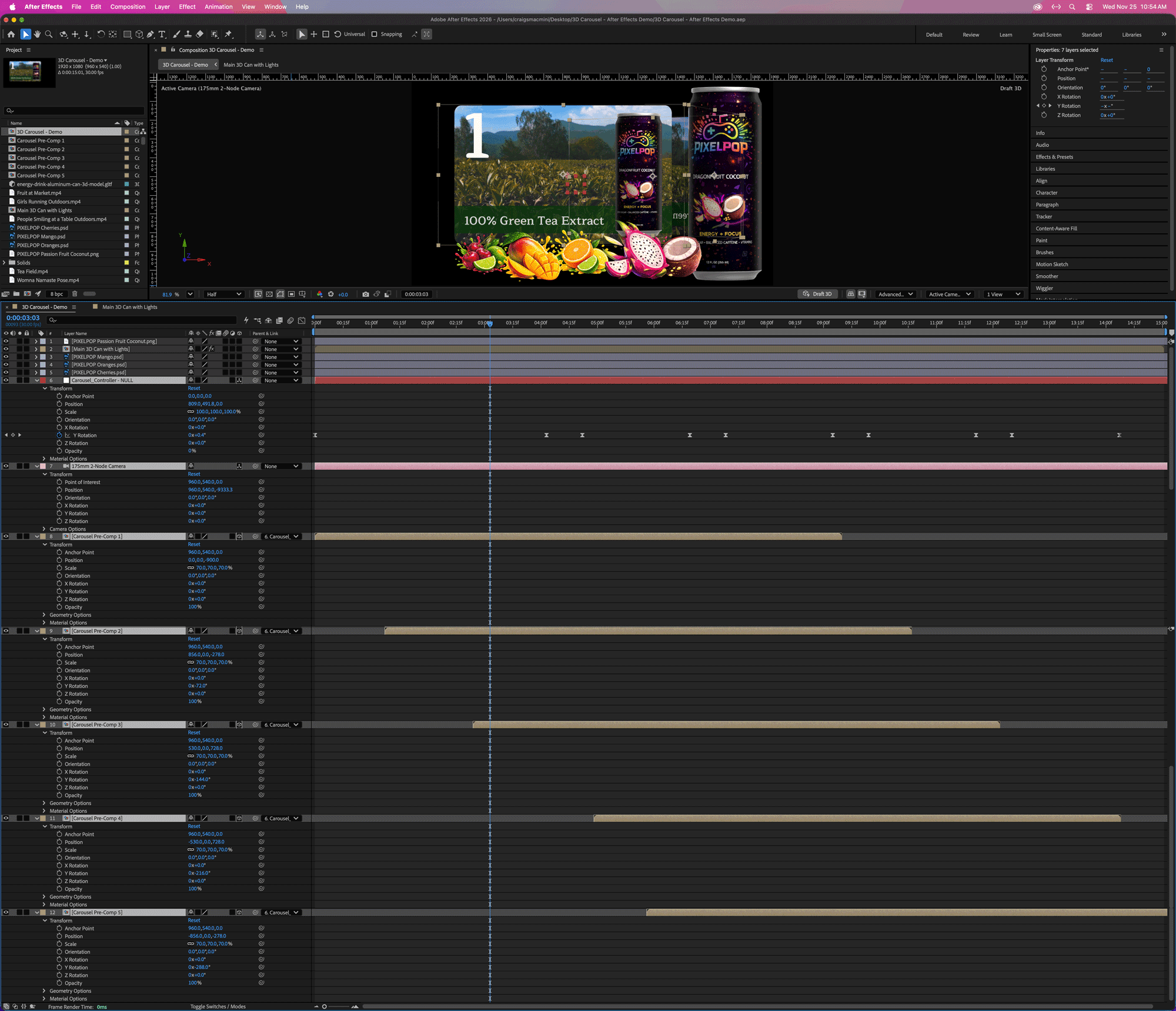
Here is a clean workflow for building a 3D carousel in After Effects using Advanced 3D, complete with the 3D can and other objects floating and orbiting around it.
Here’s the animation I made as an example:
Download the After Effects Template and Support Files for this Project Here
Download Here: PIXELPOP – 3D Carousel Animation Example
Build the Carousel
1. Set Up the Comp & Center Hub
- Create a composition (1920 × 1080, 30 fps), open Composition Settings (Ctrl/Cmd+K) > 3D Renderer, and set it to Advanced 3D.
- Add a Two-Node Camera (Layer > New > Camera), verify Film Size is 36.00 mm, choose the 135mm lens preset, then change the focal length to 175mm to avoid wide-angle distortion.
- Create a 3D Null Object (Layer > New > Null Object, check the 3D Layer switch) at the center of the comp. Name it Carousel_Controller.
- Layer > Transform > Center Anchor Point in Layer Content
- Layer > Transform > Center in View
2. Build your six Carousel Pre-Comps
Each of these cards could be a storyline told with five mini-advertisement cards showing the product’s benefits. It can also walk them through the four stages of the marketing funnel and have a call to action on the fifth card.
- Composition > New Composition; Name: Carousel Pre-Comp 1; (1920 x 1080, 30fps, 15-seconds); 3D Renderer: Advanced 3D
- Choose the rectangle tool in your top toolbar and draw a 1920 x 1080 rectangle. Set Roundness to 60.
- Layer > Transform > Center in View
- Set the rounded corner rectangle as a Track Matte for any photos, videos, or graphics that extend beyond it. This will keep your carousel “cards” clean and evenly spaced.
- Import and add your assets (3D can, video, photo, or your text/layout) to this comp, then save. (This is your first carousel stop).
- In the Project panel, duplicate your Carousel Pre-Comp 1 (Command D) four more times and rename them: Carousel Pre-Comp 2, 3, 4, and 5.
- It’s okay if these are all the same for now as we build the carousel. You can customize them later.
3. Build the Carousel Ring with Orbiting Cards
- Drag your 5 Carousel Pre-Comps from the Project window into the timeline and enable the 3D Layer cube icon on each one.
- Select all five carousel pre-comp layers and choose Layer > Transform > Auto-Orient…: OFF
- Select all pre-comp layers, press S to open Scale, and reduce the Scale to 70%
- Parent all carousel items to the Carousel_Controller layer.
- Space them evenly around the circle:
- Divide 360° by the number of items (5 items = 72° apart).
- I based the math to calculate the card positions on a radius of 900 pixels from the center of the carousel circle.
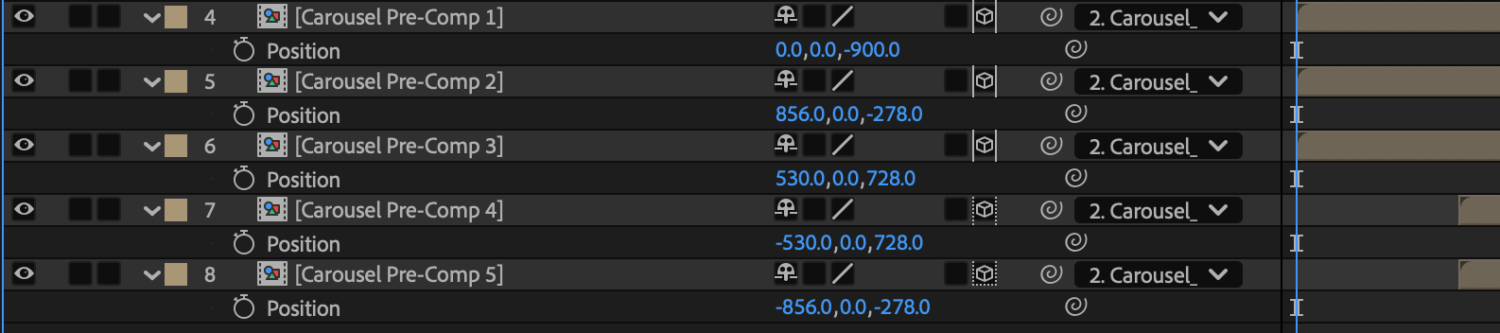
- Enter these Pre-Comp Position values in their respective layers (select all five layers and press P):
| Card (Pre-Comp) | X | Y | Z |
|---|---|---|---|
| 1 | 0 | 0 | -900 |
| 2 | 856 | 0 | -278 |
| 3 | 530 | 0 | 728 |
| 4 | -530 | 0 | 728 |
| 5 | -856 | 0 | -278 |
4. Animate the Carousel Spin with the Null
- Select Carousel_Controller (Null) and press R for Rotation.
- Set keyframes on Y Rotation to turn the carousel from one item to the next (e.g., 0° at 0s, hold for 1s, ease to 72° at 2s, hold, ease to 144°, 216°, and 288°). Like this:

Select the keyframes and add Easy Ease, and adjust in the Graph Editor as needed to get the look you want.
Note: To reduce or enlarge the entire carousel, simply adjust the Scale of the Carousel–Controller (Null) layer.
Reminder: To reposition the entire carousel within your main video frame, simply change the position of the Carousel–Controller (Null) layer, or click and drag it in your comp window. Since the pre-comp cards are parented to the Carousel–Controller, they all move with it.
5. (Optional) Light & Polish
- Add an Environment Light (Layer > New > Light > Environment) so the 3D can catch realistic studio reflections as it rotates.
- Optional: Enable Depth of Field in Camera Settings (Ctrl/Cmd+Shift+Y), set Focus Distance to match the front item’s distance from the camera, and raise Aperture slightly so items in the back softly blur while the front hero item pops.
Complete Carousel Timeline Settings
Enlarge your screen settings or view in a new window to see the details.