How to use Canva – A Video Tutorial
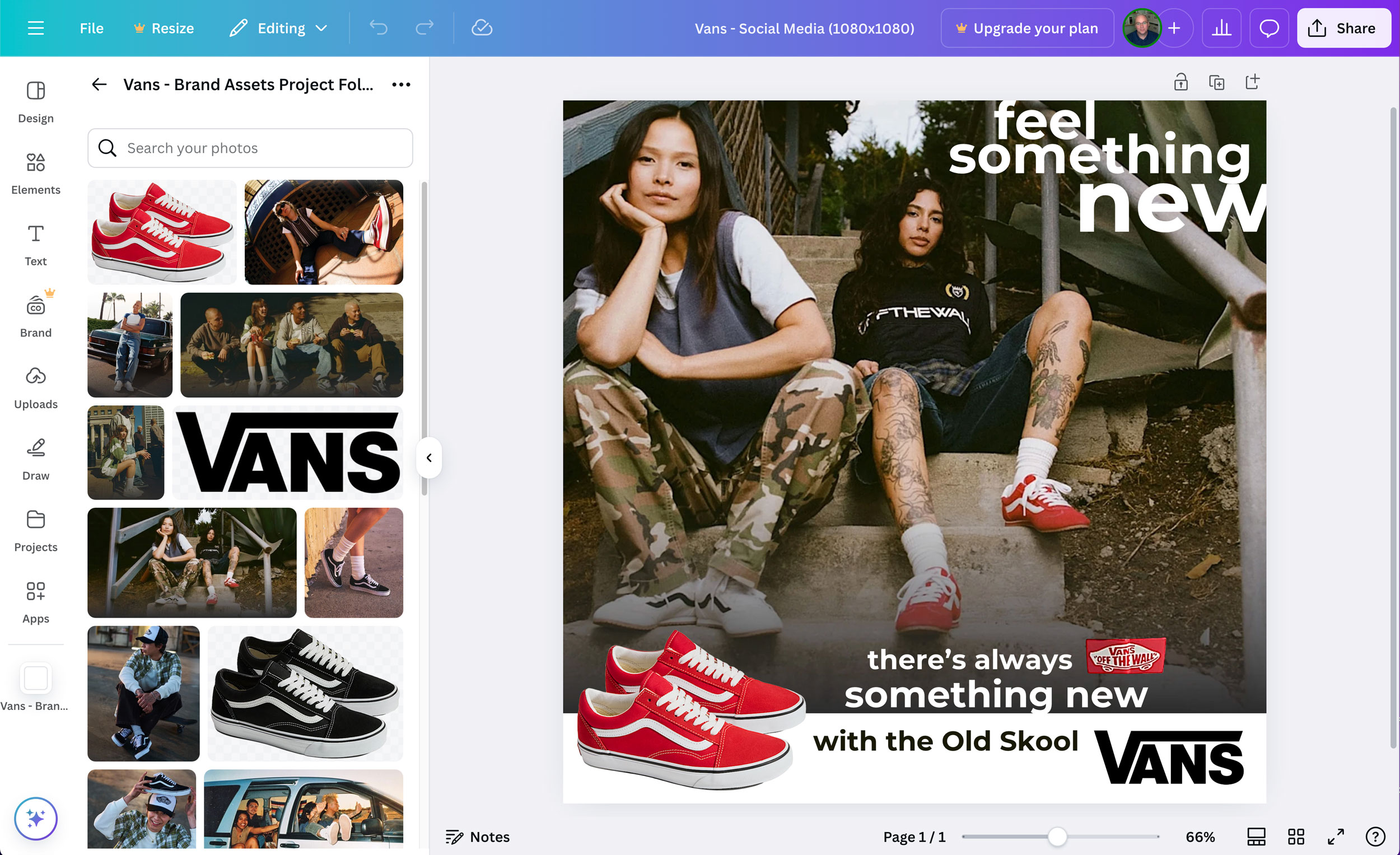
This tutorial video gives a quick overview for designers using Canva for the first time. Download the Vans project file (below) to get the assets and follow along with the video. Or, you can just watch the video and learn from it.
The video will cover:
- Uploading a folder of design assets
- Creating a new document and size
- Adding your photos, logos, shapes, and text
- Adjusting and arranging elements on your page
- Exporting your design to a PDF
I think you’ll find this video helpful. Remember, Canva takes a minimalist approach to design and doesn’t offer as many tools and adjustment options as Adobe’s software. This doesn’t have to be a bad thing, and it can make your life easier when first learning to design.
(10:54)
Design for Vans shoe brand on Canva.com
More and more companies are asking designers to know how to design in Canva.com. While it’s not as robust as the Adobe programs, it is growing in popularity with many companies. I think it is good for you to have some experience designing on its online web platform.
Here’s how to do it:
- Go to Canva.com and create your own free account
- Create a new project for an Instagram social media post (1080x1080px)
- Download the Vans brand asset project folder here: Vans – Brand Assets Project Folder.zip
- Upload the entire project folder into Canva
- Design your social media post
- Download a PNG from Canva for critiques and to hand in
Here’s my example design:
Good Job!
Switching from Adobe to Canva
Pros
- Blazing Speed: Turnaround times drop significantly.
- Pre-Baked Templates: Thousands of pre-sized assets eliminate manual setup.
- Frictionless Collaboration: Multiple team members edit simultaneously in real time.
- Built-in AI Tools: Background removal and resizing take one click.
- Lower Learning Curve: Onboard non-designers or clients in minutes. [1, 2, 3, 4, 5]
Cons
- Zero Vector Control: Cannot draw or edit complex custom vector shapes.
- Lacks Advanced Photo Editing: No frequency separation or deep masking tools.
- Homogenous Designs: Heavy reliance on templates risks looking like competitors.
- Intellectual Property Limits: Cannot trademark logos built using Canva elements.
- Subscription Lock-In: Canceling the plan revokes access to premium brand assets
Compare Feature Deep Dives
- Typography: Adobe offers full kerning, tracking, and OpenType controls; Canva offers basic font size and spacing adjustments.
- File Portability: Adobe outputs raw vector files (.AI, .EPS); Canva prioritizes web-ready raster formats (.PNG, .JPG) and flattened PDFs.
- Workflow integration: Adobe links deeply across Premiere, After Effects, and Audition; Canva operates entirely inside its isolated web application ecosystem.
Custom Vector Drawings to Canva
Since Canva is not (currently) a full vector drawing program, you can create your own custom vector graphics in a program like Adobe Illustrator and upload them into Canva to use in your designs.
Simply create your custom vector drawings in Illustrator, save them as SVG files (scalable vector graphics), and upload them to Canva. You can edit them slightly in Canva, like changing the colors and opacity, if you choose.
Download this Illustrator file and upload it to Canva to test it out. The wave vector drawings are saved from Illustrator as .svg files.