
On this page (quick links):
- Overview
- Where Social Ads are Created
- Switching from Adobe to Canva
- Grading Checklist
- Examples
- 4 Levels of Graded Design Work
- Social Media Graphics – Best Practices
- How to use Canva.com
- Design for Vans (Download Assets folder)
- Behind the Learning
Overview
Take out your phones and bring up your favorite brand’s social feed. What types of graphics do you see? Message? Audience? Branding?
The continued popularity of social media has increased the need for social media graphics. Many graphic designers are asked to create graphics and banners for their companies’ and clients’ social media sites.
These graphics include:
- Highlighted products and overall brand
- Company values and beliefs
- New employee highlights and announcements
- We’re hiring!
- Join us for our open house
- Product launches
- Fundraisers
- Goodwill efforts, good stewardship partnerships, or charitable affiliations the company enjoys
- Landing a new account
- Launching a new website or app
Where Social Ads and Content are Created
Most social media content is created using dedicated external design platforms like Canva rather than native platform tools or standalone professional software. An estimated breakdown shows:
- 65% use template-based web platforms (Canva and Adobe Express)
- 25% use professional desktop suites (Adobe Photoshop and Illustrator or Figma)
- 10% use native in-app mobile tools (Pinterest, Instagram, TikTok)
Tool Categories
- Template Web Platforms (65%): Tools like Canva and Adobe Express dominate daily social media output due to fast drag-and-drop layouts, pre-sized templates, and bulk content scheduling.
- Professional Suites (25%): Software such as Adobe Photoshop, Illustrator, and Figma is used by high-end brands and professional agencies for advanced photo manipulation, custom vector graphics, and unique brand identities.
- Native Platform Apps (10%): Built-in tools inside apps like Pinterest, Instagram, or TikTok are used primarily for final text overlays, native stickers, or quick, spontaneous stories rather than original ad design.
Switching from Adobe to Canva
Pros
- Blazing Speed: Turnaround times drop significantly.
- Pre-Baked Templates: Thousands of pre-sized assets eliminate manual setup.
- Frictionless Collaboration: Multiple team members edit simultaneously in real time.
- Built-in AI Tools: Background removal and resizing take one click.
- Lower Learning Curve: Onboard non-designers or clients in minutes. [1, 2, 3, 4, 5]
Cons
- Zero Vector Control: Cannot draw or edit complex custom vector shapes.
- Lacks Advanced Photo Editing: No frequency separation or deep masking tools.
- Homogenous Designs: Heavy reliance on templates risks looking like competitors.
- Intellectual Property Limits: Cannot trademark logos built using Canva elements.
- Subscription Lock-In: Canceling the plan revokes access to premium brand assets
Compare Feature Deep Dives
- Typography: Adobe offers full kerning, tracking, and OpenType controls; Canva offers basic font size and spacing adjustments.
- File Portability: Adobe outputs raw vector files (.AI, .EPS); Canva prioritizes web-ready raster formats (.PNG, .JPG) and flattened PDFs.
- Workflow integration: Adobe links deeply across Premiere, After Effects, and Audition; Canva operates entirely inside its isolated web application ecosystem.
Social Content Creation on the Job
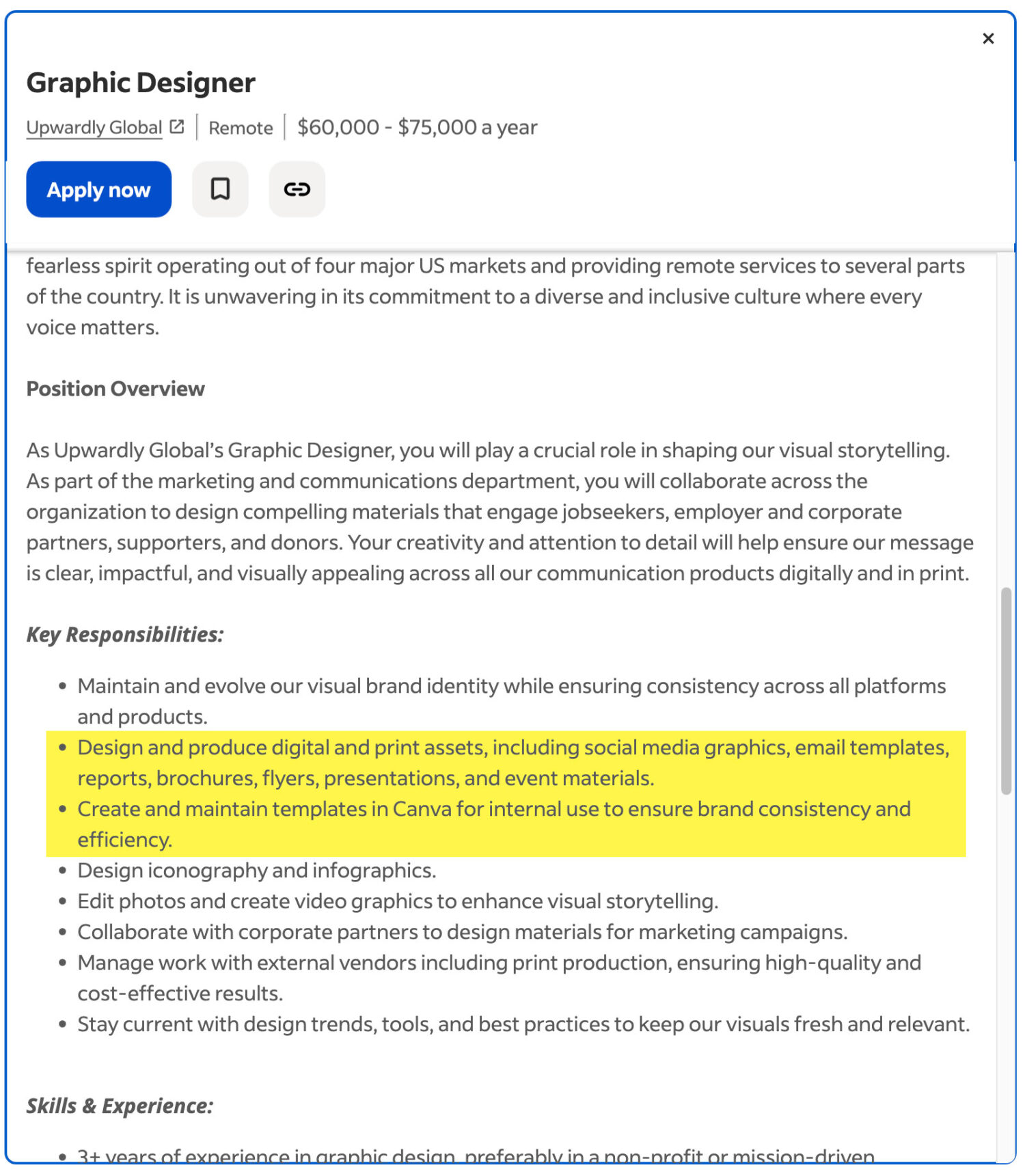
The list is endless. Social media graphics and content are extremely popular, and most graphic designers work on them often—as seen in this recent job posting:
Grading Checklist
- Design one social media graphic for your client you wrote your Design & Marketing Strategy for
- Size: 1080 x 1080 pixels
- Software: Canva.com (set up your own free account)
- You may use Illustrator if you prefer and have the knowledge and skills
- Find more stock photos: unsplash.com, pexels.com, pixabay.com, or use AI.
- Export a PNG from Canva, or in Illustrator, save your final graphic for the web as an optimized 1080 x 1080 pixel .png
- Critiques: Participate in presentations and critiques of your work
- Presentation: Present your final work to the class
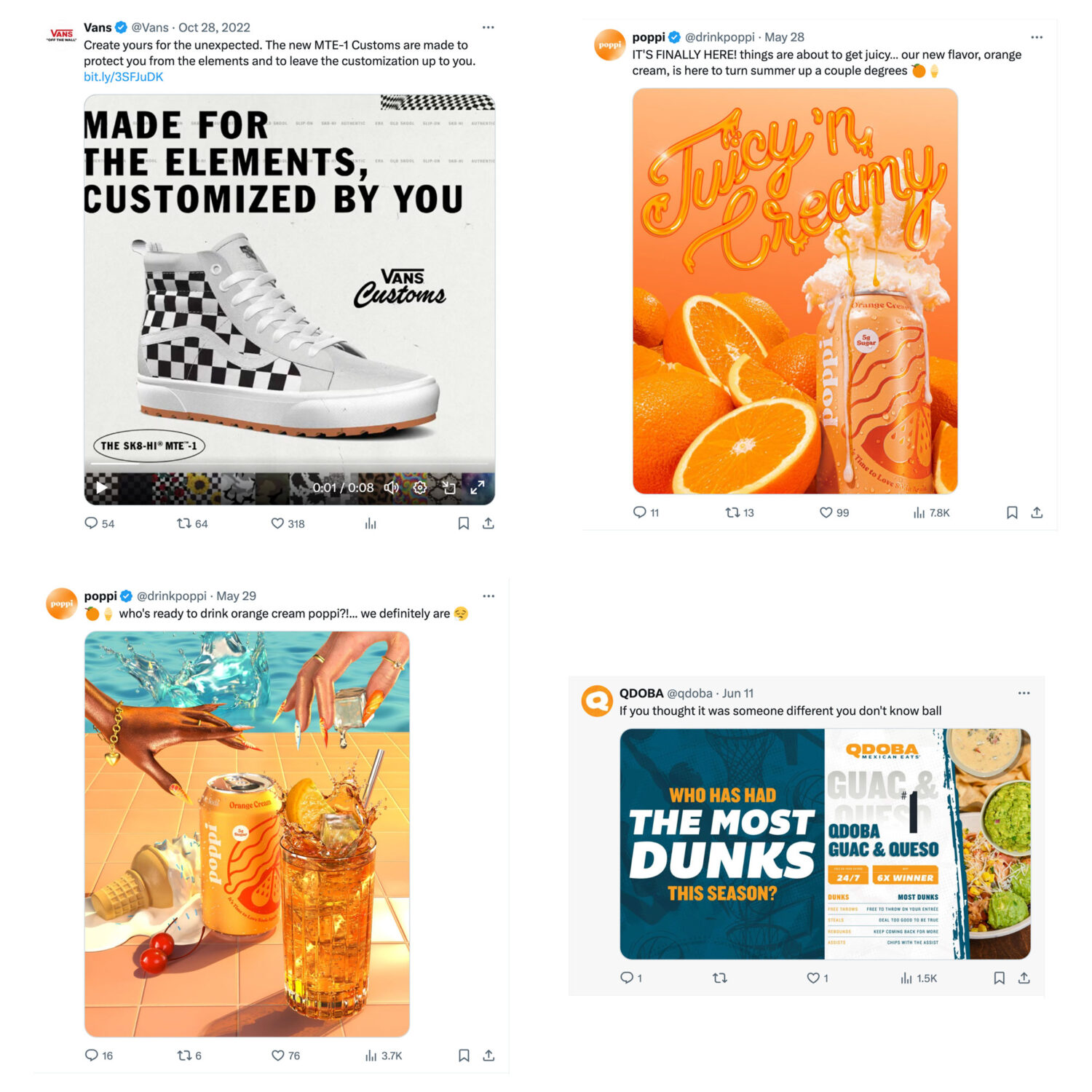
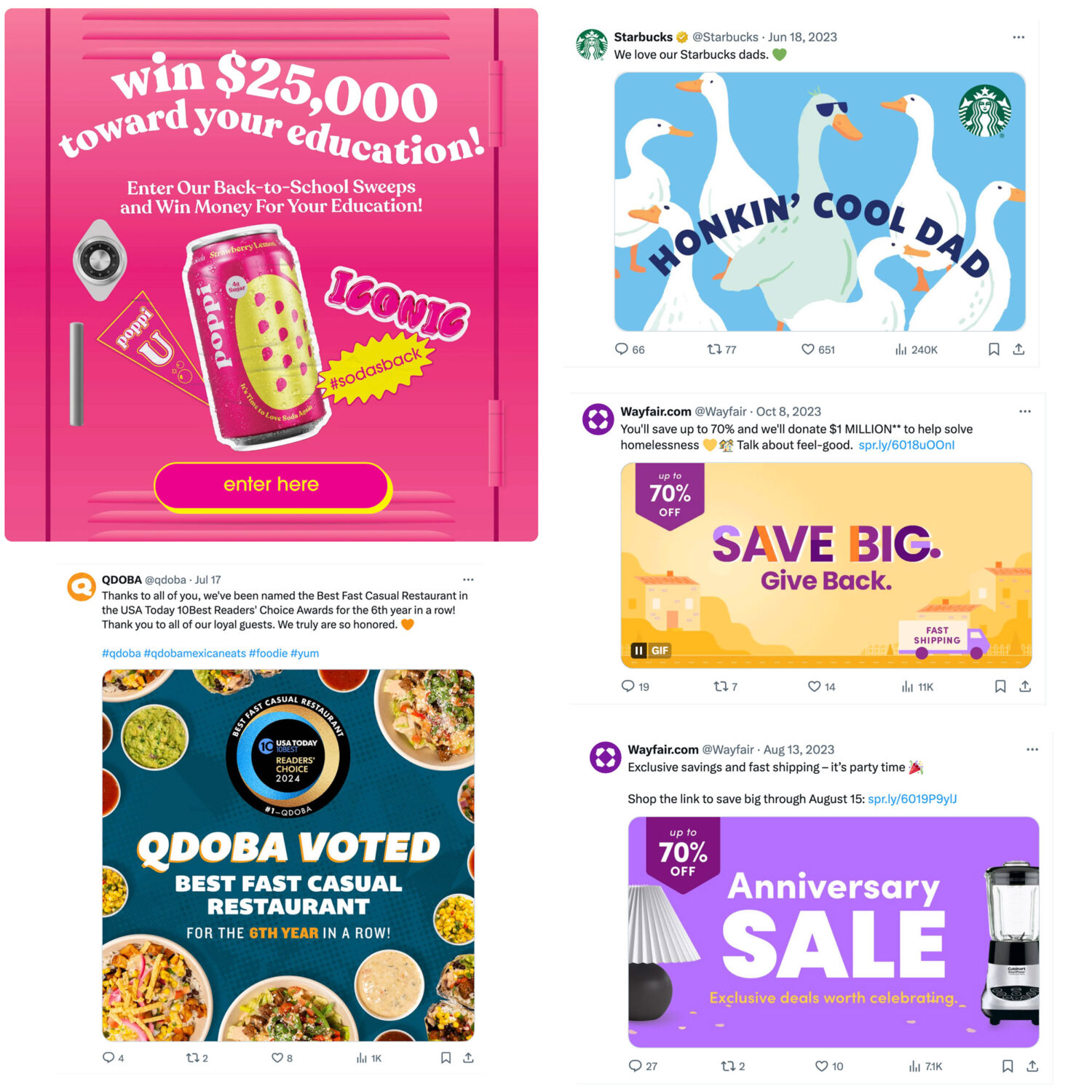
Examples


Student Work
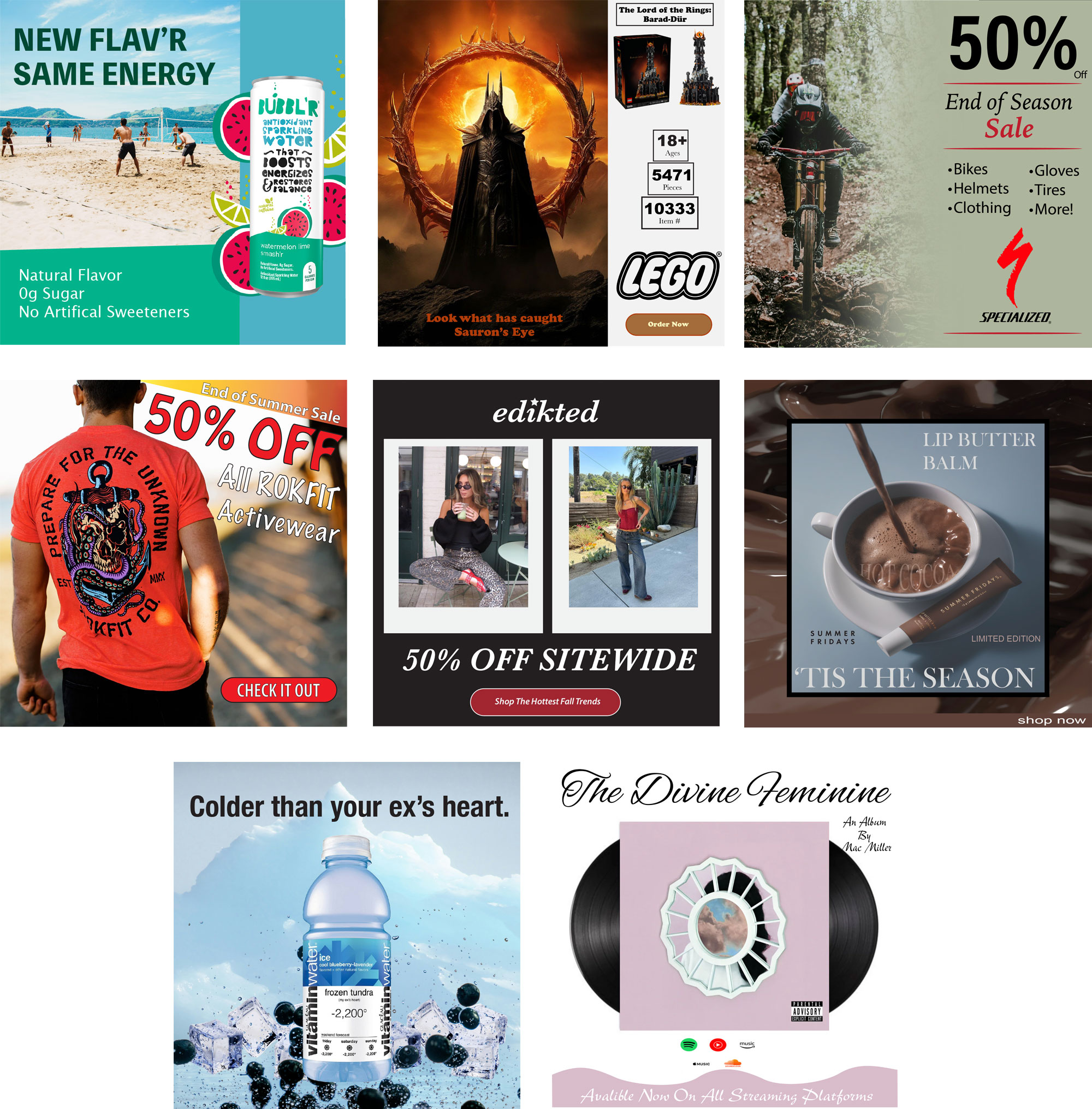
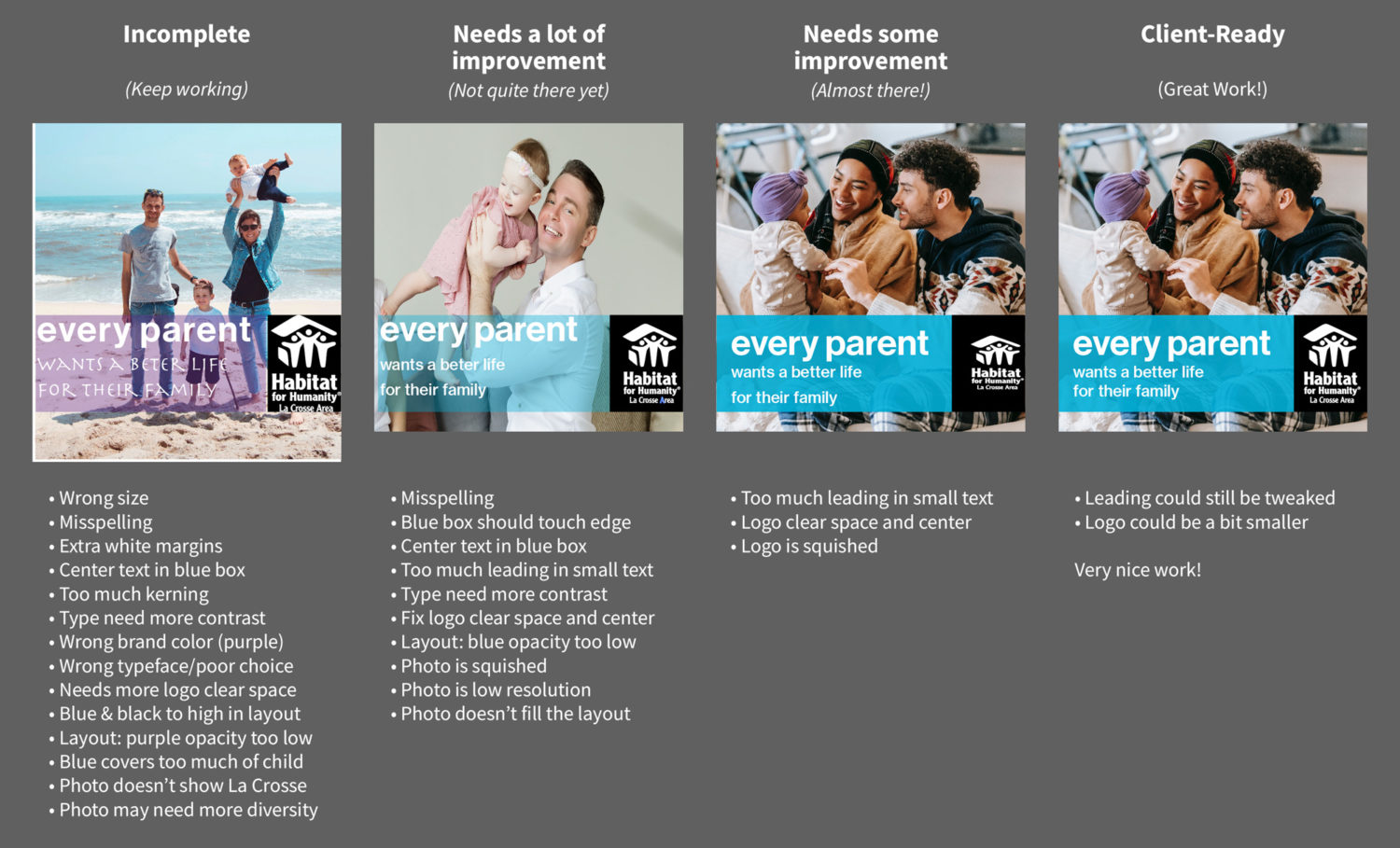
4 Levels of Graded Design Work
(Always strive for Client-ready)
Social Media Graphics – Best Practices
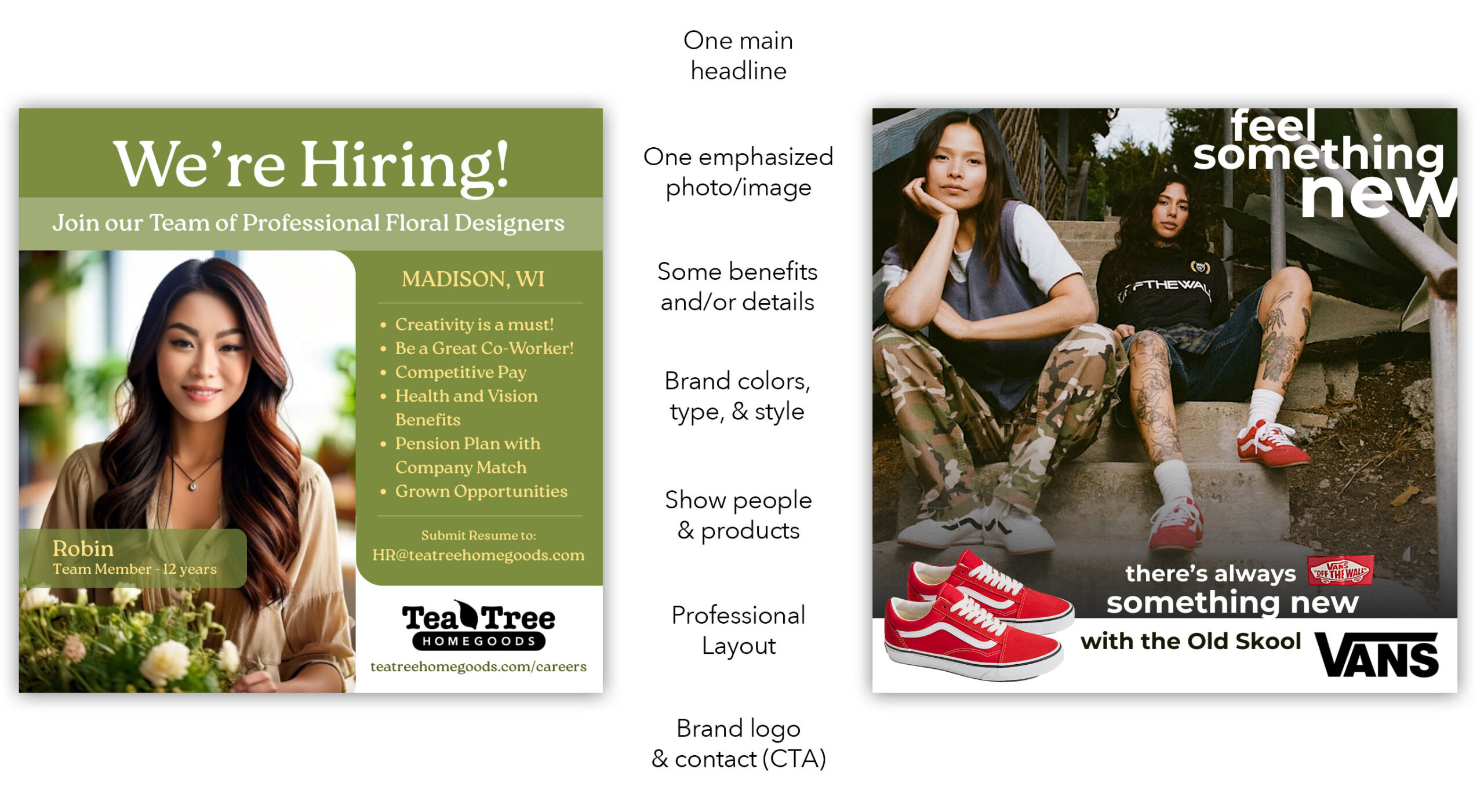
- Follow your client’s brand guidelines when they have them
- Follow pixel dimensions for each specific platform, or use a universal size of 1080 x 1080 pixels (recommended).
- Highlight one message, topic, or subject only per graphic
- Use large headlines to grab attention
- One large photo or graphic to grab attention
- Brand your design with your client’s logo, typography, colors, layout, and repeatable design elements.
How to use Canva.com
This tutorial video gives designers using Canva for the first time a quick overview. We’ll cover:
- Uploading a folder of design assets
- Creating a document size
- Adding your photos, logos, shapes, and text
- Adjusting and arranging elements on your page
- Exporting your design to a PDF
I think you’ll find this video helpful. Remember, Canva takes a minimalist approach to design and doesn’t offer as many tools and adjustment options as Adobe’s software. That doesn’t have to be a bad thing; it can make your life easier when designing.
(10:54)
Custom Vector Drawings to Canva
Since Canva is not (currently) a full vector drawing program, you can create your own custom vector graphics in a program like Adobe Illustrator and upload them into Canva to use in your designs.
Simply create your custom vector drawings in Illustrator, save them as SVG files (scalable vector graphics), and upload them to Canva. You can edit them slightly in Canva, like changing the colors and opacity, if you choose.
Download this Illustrator file, and I’ll show you, in class, how to do this.
Design for Vans shoe brand on Canva.com
More and more companies are asking designers to know how to design in Canva.com. While it’s not as robust as the Adobe programs, it is growing in popularity with many companies. I think it is good for you to have some experience designing on its online web platform.
Here’s how to do it:
- Go to Canva.com and create your own free account
- Create a new project for an Instagram social media post (1080x1080px)
- Download the Vans brand asset project folder here: Vans – Brand Assets Project Folder.zip
- Upload the entire project folder into Canva
- Design your social media post
- Download a PNG from Canva for critiques and to hand in
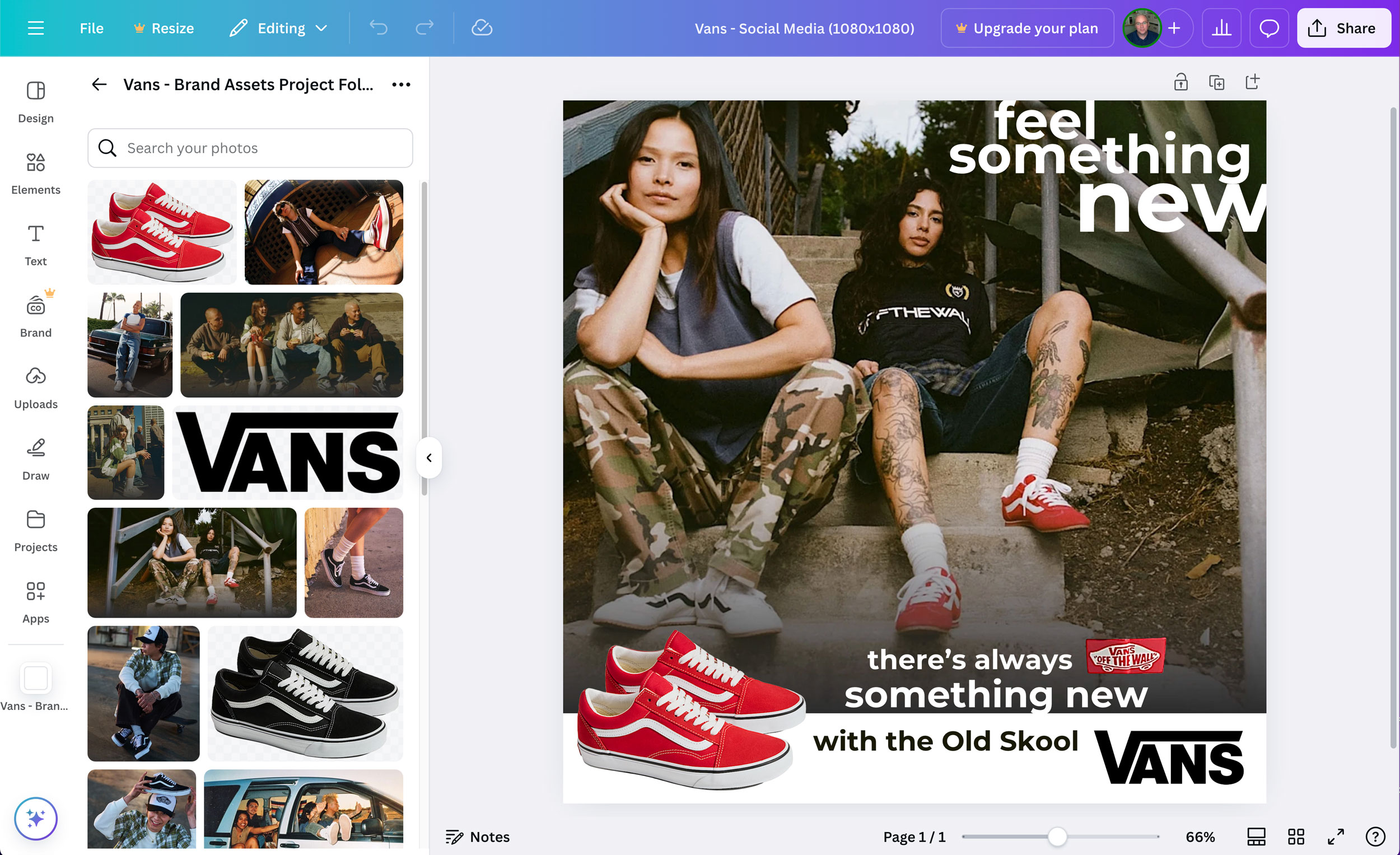
Here’s my example design:
Good Job!
Behind the Learning
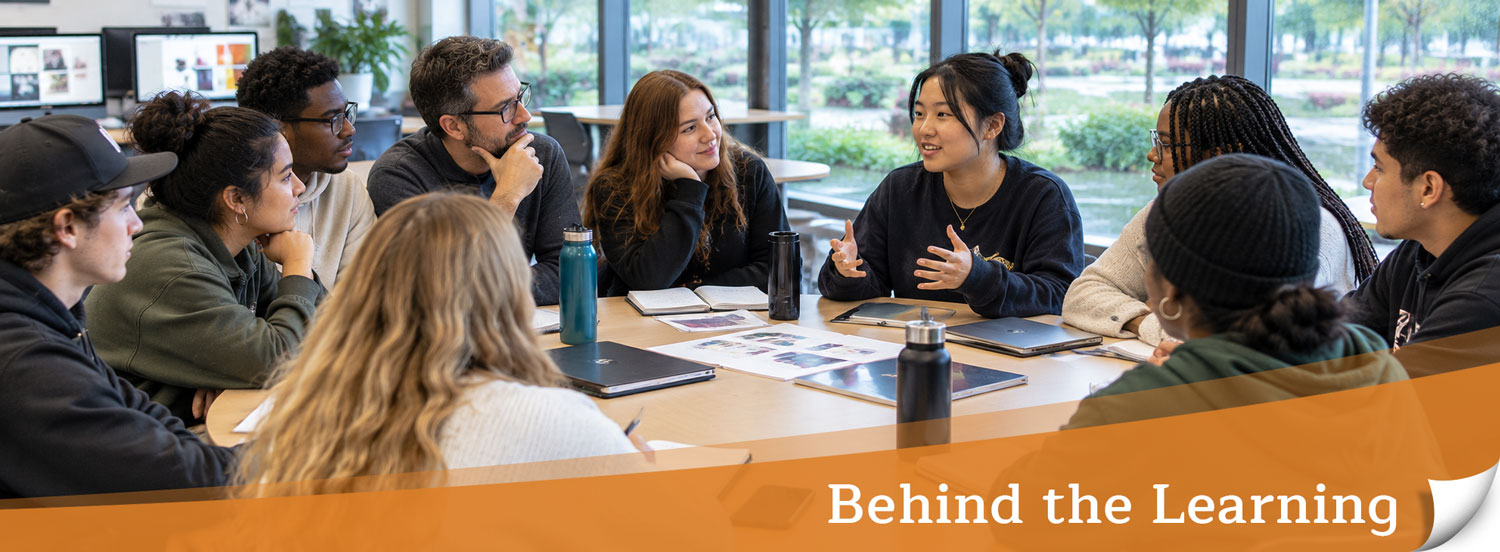
A look at the choices and strategies on this page that help students learn.
UDL in this Design Project
1. ENGAGEMENT — Give students a reason to care
Help students connect with the work and take ownership of their learning.
- Student choice: Choose a client
- Students select their own client or customer for a social media graphic.
- UDL connection: Personal choice can increase interest, relevance, and motivation.
- Why try it? When students care about their projects, engagement becomes more natural and requires less effort to generate.
2. REPRESENTATION — Offer different ways to learn
Give students multiple ways to see, hear, read, and understand new information.
- Live demonstration
- I demonstrate the software while students work alongside me.
- UDL connection: Students see the process modeled in real time.
- Recorded demonstration videos with captions
- Students can pause, replay, and review the video. Captions make spoken information accessible to students who are deaf or hard of hearing and can also benefit other learners.
- UDL connection: Students can review information at their own pace and access it in different ways.
- Written instructions
- Students access project instructions on my website.
- UDL connection: Students can read, revisit, and follow directions independently.
- Individual help
- I demonstrate a technique again or show students how it applies to their specific project.
- UDL connection: Support adapts to different learning needs without changing the learning goal.
- Why try it? Reusable videos and written instructions can reduce repeated explanations, giving you more time to help students with individual problems.
3. ACTION & EXPRESSION — Help students practice, improve, and grow
Give students ways to apply what they’ve learned, use feedback, and make decisions.
- Peer critiques — two rounds
- Students print their designs in color, leave space for comments, and exchange feedback with classmates.
- UDL connection: Students learn by reviewing, discussing, and evaluating design work.
- Instructor critiques — two rounds
- I draw and write directly on students’ printed designs to show what’s working and what could improve.
- UDL connection: Specific, visual feedback makes suggestions concrete and actionable.
- Student decisions
- Students decide which peer and instructor suggestions to use.
- UDL connection: Students practice judgment, independence, and responsibility for their learning.
- Revision and comparison
- Students submit their revised design alongside the critiqued print. I compare the two to see how they used feedback and developed their work.
- UDL connection: Students apply feedback, monitor progress, and demonstrate learning through revision.
- Why try it? Build feedback and revision into the project instead of saving everything for the final grade. Students get opportunities to improve, and you can see their learning process — not just their finished work.
The Takeaway
UDL isn’t about doing more. It’s about planning differently.
- Anticipate where students might struggle.
- Offer options before students need to ask.
- Keep the learning goals consistent while letting students take different paths to reach them.
- Build feedback and revision into the learning process.
Start small: Choose one lesson you already teach. Identify one likely barrier and one simple way to reduce it. You don’t have to change everything at once.
Learning Theories in this Design Project
You don’t need to be an educational theory expert to help students learn. But understanding a few basic ideas about how people learn can help you make better classroom decisions.
Here are three useful ways to think about learning—and simple ways to put them into practice.
1. Motivational Learning: Help Students See the Value
The big idea: Students are more likely to learn when they believe they can succeed and understand why the material matters.
When students begin something new, they may be wondering:
- Can I actually do this?
- Why do I need to learn this?
- How will this help me in my future career?
As an instructor, you can help answer these questions.
What this looks like in the classroom:
- Start with something interesting.
- First, I have them find real social graphics on their phones and share them as a class. This makes the project relevant and shows them that social graphics are an essential part of their favorite brand’s marketing efforts.
- I show a real graduate portfolio: a 2-page spread of a marketing campaign. This shows students where the social graphics fit into the bigger picture.
- I show real-world examples of social media graphics and real previous student designs.
- Connect learning to careers.
- I show a real job posting for a graphic designer that lists social media graphic design as a job skill employers ask for.
- Help students believe they can succeed.
- We start by designing one piece of marketing material (the social graphic). This builds confidence. Then we move on to design more marketing materials. And then bring them all together on the 2-page portfolio spread.
- Give students some choice.
- Students choose their client and topic based on their interests. I give some options, but still let them decide with some guidance. This allows them to bring their own voice, background, and perspectives into their work.
- Try this: Before starting a lesson, ask yourself, Why would my students care about learning this? Then find a simple way to show them.
2. Cognitive Learning: Help Students Understand and Remember
The big idea: Students learn more effectively when new information connects to what they already know and is presented in manageable steps.
Simply covering material doesn’t mean students have learned it. They need time to process information, practice skills, make connections, and check their understanding.
What this looks like in the classroom:
- Break complex tasks into steps. Again, we start by designing one piece of marketing material (the social graphic). This builds confidence. We then design more marketing materials before bringing them all together on the 2-page portfolio spread.
- Show students what success looks like.
- I show students four levels of graded work, along with areas for improvement for each. This shows them what they are aiming for and how to get there. In critiques, I apply these same steps to each student’s work and show them how to improve individually.
- I use examples, demonstrations, and tutorials to make social media graphic design ideas easier to understand.
- Check understanding along the way. I build in work time so I can walk around, check in, ask questions, answer questions, critique, give feedback, and revisit tutorials and demos as needed. Peer critiques are helpful here too.
- Provide support at first. I give my students step-by-step instructions and tutorials to help them learn new material. As they gain confidence, I do encourage them to work more independently by making more design choices and decisions on their own.
- Avoid overwhelming students. I scaffold learning and avoid introducing too much at once. I do pre-assessment class discussions to see where they are starting, and who might need more or less instructional help.
- Use different ways to explain ideas. I try to combine in-class software demos and written directions. on my website, tutorial videos, visuals or infographics, and hands-on practice.
- Try this: Think about a skill students find difficult. Could you demonstrate it in smaller steps, provide a visual guide or video tutorial, or let students practice before asking them to complete it independently?
3. Social Learning: Help Students Learn from Each Other
The big idea: Students learn by observing others, sharing ideas, practicing together, and receiving feedback.
Learning doesn’t have to happen only through an instructor’s explanations. Classmates can also be valuable learning resources.
What this looks like in the classroom:
- Build a respectful classroom.
- I use a simple seating chart to help me learn their names more quickly.
- I walk the room during work time and try to ask one deeper follow-up question when I can. “Why did you choose to do your designs on a Hunting E-Bike? Do you know someone who has one?”
- Let students work together. I use small-group peer critiques to allow them to present their work and get feedback.
- Encourage students to explain their thinking. I have them present their work and try to explain why they made the design choices they did.
- Make feedback a conversation. I try to do this as well. Sometimes I just tell them what’s wrong, show them a better way, and try to explain my reasoning. Other times I have them read all the critique feedback and decide for themselves which direction to go.
- Give students opportunities to learn from examples. I demo how to do things for them, and they also see other students’ work throughout the design process. We do peer critiques twice throughout the class, and I encourage them to talk with classmates often and get feedback.
- Try this: Find one opportunity for students to learn with or from each other. For example, ask partners to compare their solutions to a problem and explain why they made different choices.
Putting It All Together
These three ideas work together. Students are more likely to learn when they see the value of a task, have the support they need to understand it, and have opportunities to practice and learn with others.
You don’t have to change everything you do. Start with one lesson and ask yourself:
- Motivation: How can I help students see why this matters?
- Understanding: How can I make this easier to learn and remember?
- Connection: How can students learn from practice, feedback, or each other?
Small, thoughtful changes can meaningfully shape how students experience learning—and how confidently they apply what they’ve learned.