
We’ll use Blackboard’s Discussion Board for design critiques.
Critiquing is an excellent opportunity for you to present your work to others, explain your ideas and solutions to people, and have other people challenge your ideas and also tell you where you are doing well. They should be a positive experience in your design process that helps you grow as a designer.
3 Steps to Critiquing
- Upload your design work to the proper discussion board on Blackboard
- Write a short paragraph to present your design to everyone and tell them what it’s about (message, audience, goals, objective, client, design style, etc. Ask for help with specific parts of your design if you need it.
- Critique the work of at least 4 other students
Make sure everyone gets critique feedback
Check the “Total Posts” column on the right to see who needs more critiques. Keep them even.
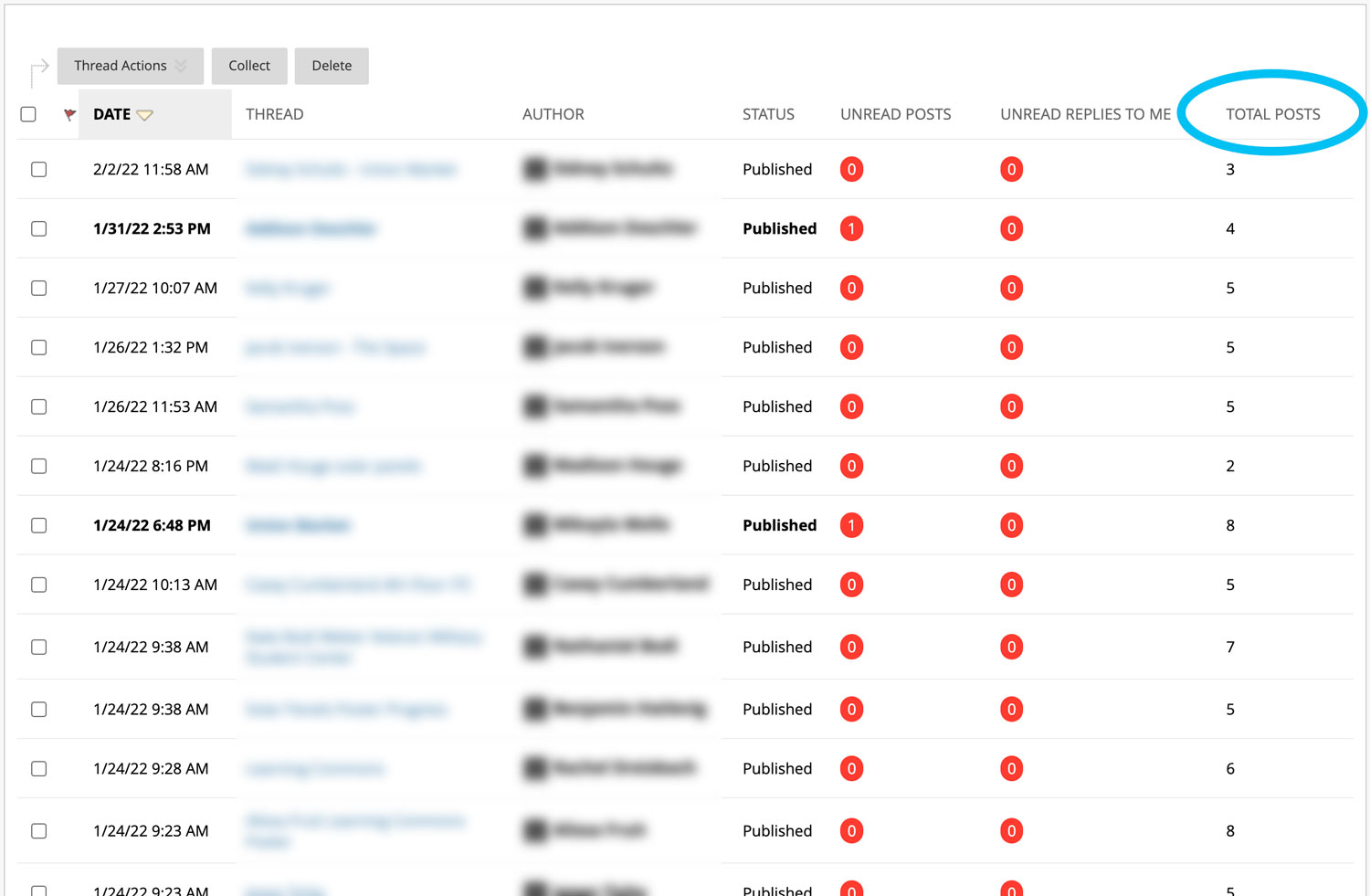
(Once you complete at least 4 critiques, Blackboard will prompt me to grade them)
A GOOD example of critique feedback (specific)
Well Done
- The typeface works well for the client’s brand. It’s clean and easy to read.
- The illustrations are nicely done too! I like the simple linework and how they are all consistent throughout the layout. They match the typeface too.
- I also really like the shapes at the top. The bright brand colors really help this area POP!
Suggestions to Improve
- A light-colored background might help the white outlines pop more
- The green in the house is a bit too yellowish for my taste
- Maybe add a dog to the family. And a second child?
- The logo seems a little too small
A POOR example of critique feedback (vague)
- Looks good!
- Nice work, wouldn’t change a thing!
- Agree with what Amanda said above
Best file formats to upload
- Most projects (posters, MailChimp emails, web ads, brochures, social media graphics) — screen capture (PNG), JPEG, or PDF
- Website — make a .zip file of your entire website folder
- Video — Render video to a .mp4
- Do not upload raw files like .aep, .psd, indd, or .ai
Screen Capture
MAC — Command Shift 4, drag to select the area to capture
WINDOWS — Web-search it. There are differences depending on your version
Make .zip file
MAC — Control-click folder and select Compress
WINDOWS — Right-click the folder, point to Send To, then click Compressed folder(zipped)
This works with most versions.