
Overview
For this project, you will design one email marketing blast using the professional web app Mailchimp.com. Companies use email marketing blasts to reach customers directly with product and event announcements, sales, specials, educational information, how-to guides, and recipes.
I create my email blasts using Mailchimp’s online web interface.
Emails – Where and How They are Used in Marketing
Emails are sent across all levels of the marketing funnel, depending on the specific goal of the campaign.
An effective email strategy targets users at every stage:
Top of the Funnel – Awareness & Interest
- Goal: Introduce your brand, build trust, and educate subscribers without a hard sell.
- Email types: Welcome sequences, brand story introductions, educational newsletters, and lead-magnet delivery (like free guides or checklists).
Middle of the Funnel – Consideration
- Goal: Nurture leads, deepen engagement, and position your product or service as a solution.
- Email types: Case studies, product deep dives, customer success stories, and how-to guides.
Bottom of the Funnel – Buy & Conversion
- Goal: Encourage a final purchase decision.
- Email types: Promotional discounts (20% Off), cart abandonment reminders, limited-time offers, and direct product pitches.
Post-Conversion – Loyalty & Retention
- Goal: Keep customers happy and encourage repeat business.
- Email types: Thank-you notes, onboarding tips, VIP rewards, and feedback requests.
Grading checklist
- Design one email marketing blast on Mailchimp.com (create your own free account)
- Make sure it’s class-appropriate.
- Design for your client that you wrote the Marketing Plan & Timeline for.
- Deliver a focused message to a target audience in a well-designed visual form
- Get free photos on unsplash.com, pexels.com, pixabay.com, AI, or use your own.
- Use Mailchimp’s photo/image optimization tool to reduce your photo’s pixel size for web use
- Participate in class presentations and critiques
Email marketing best practices
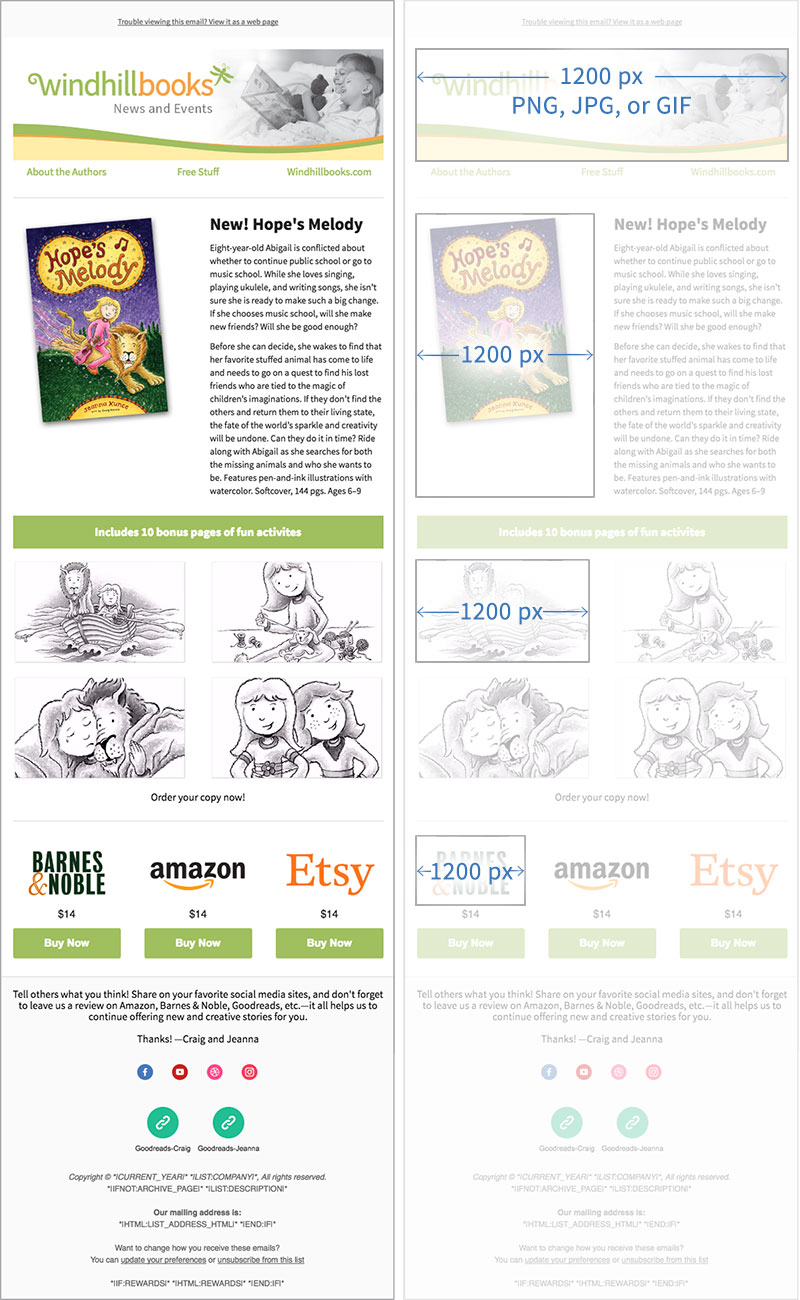
Make all images 1200 pixels, and MailChimp will automatically resize them for you.
This is helpful because you may use an image for a smaller block one time and a larger one the next time. You only have to store one image in MailChimp.
Use photos in their original high resolution. A 4000×3000 pixel photo is okay. If you shoot in RAW format, that might be too much—but you can always reduce the size in the MailChimp image editor (built into Mailchimp’s web-based interface).
Here’s a link to MailChimp’s Image Recommendations: https://mailchimp.com/help/image-requirements-for-templates/.
Email Best Practices
- Use a managed service like Mail Chimp or Constant Contact
- Focus on one main message per email blast
- Use buttons for call-to-actions
- Deliver the message before your call to action button
- Send one to two email per week
- Schedule to send when your recipient most needs it (food = dinner time)
- Why do people sign up for email newsletters?
- Want more info on the subject or topic
- Want a focused message delivered to them
- Sales, coupons, deals
Student Email Examples
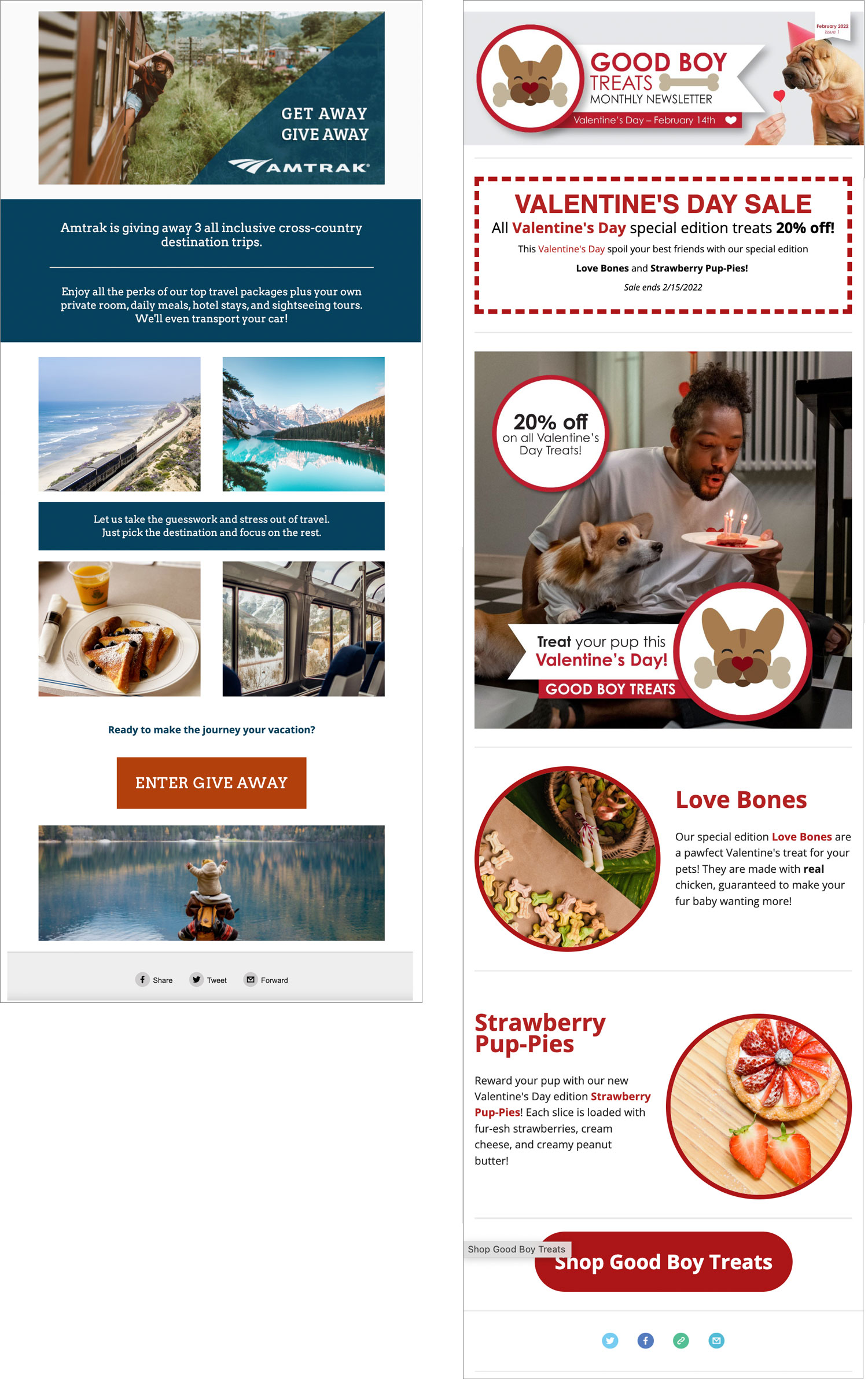
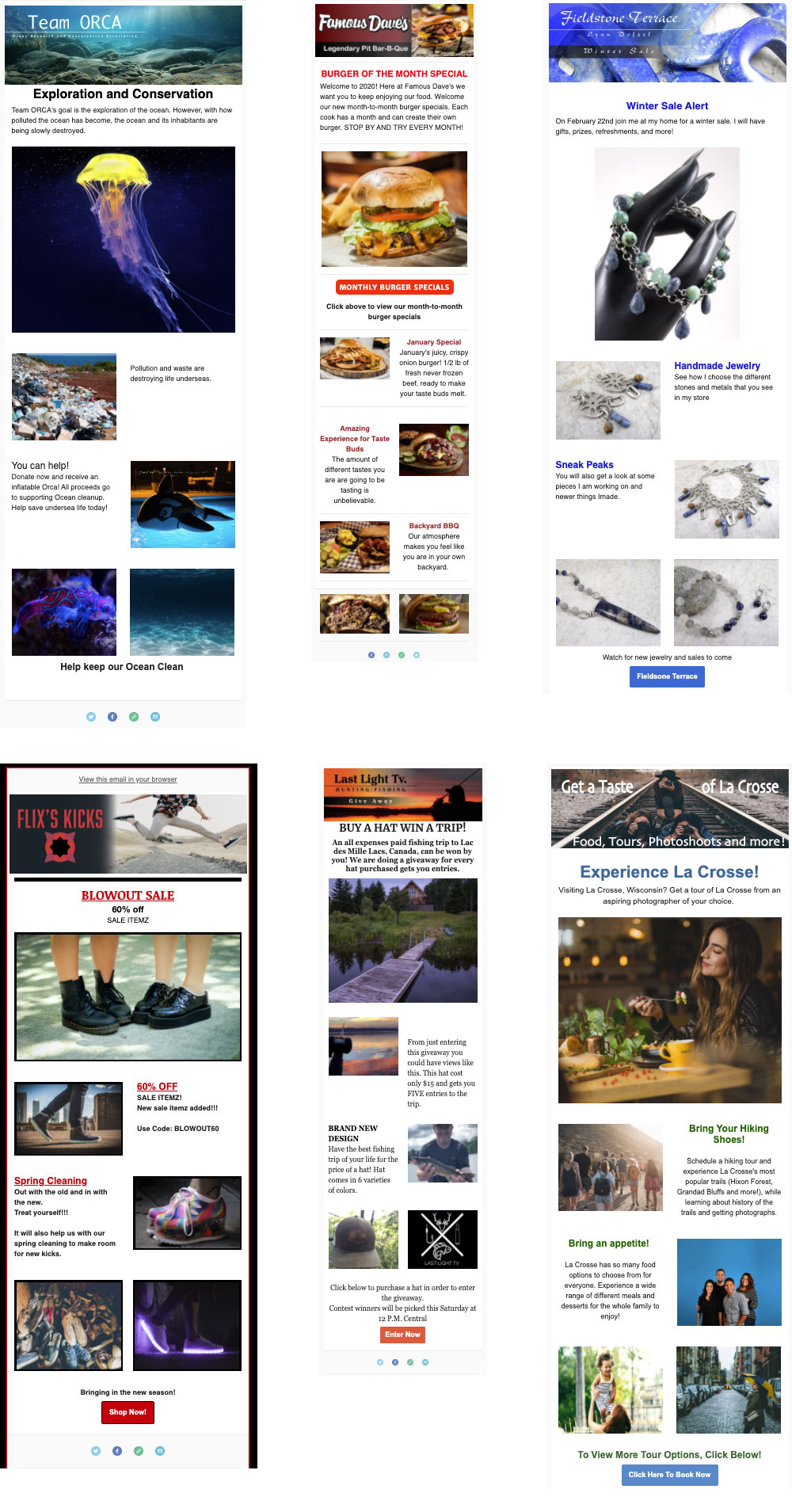
Industry Email examples
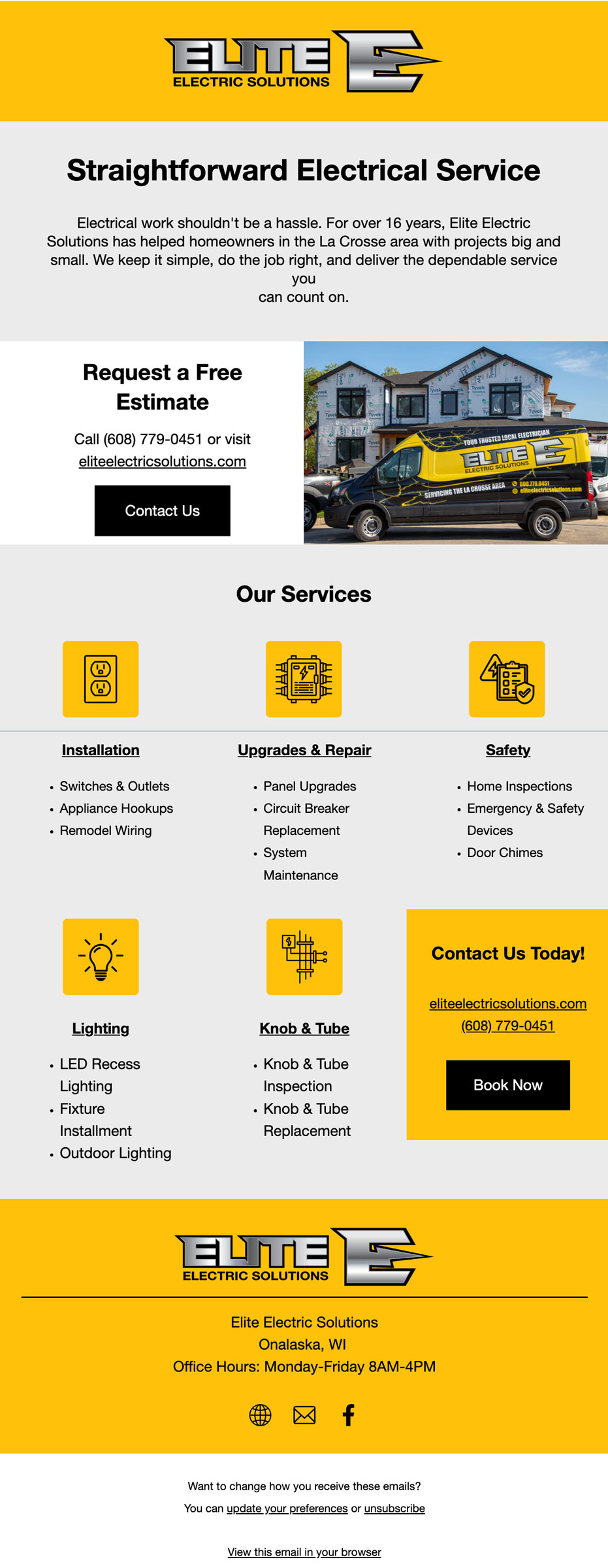
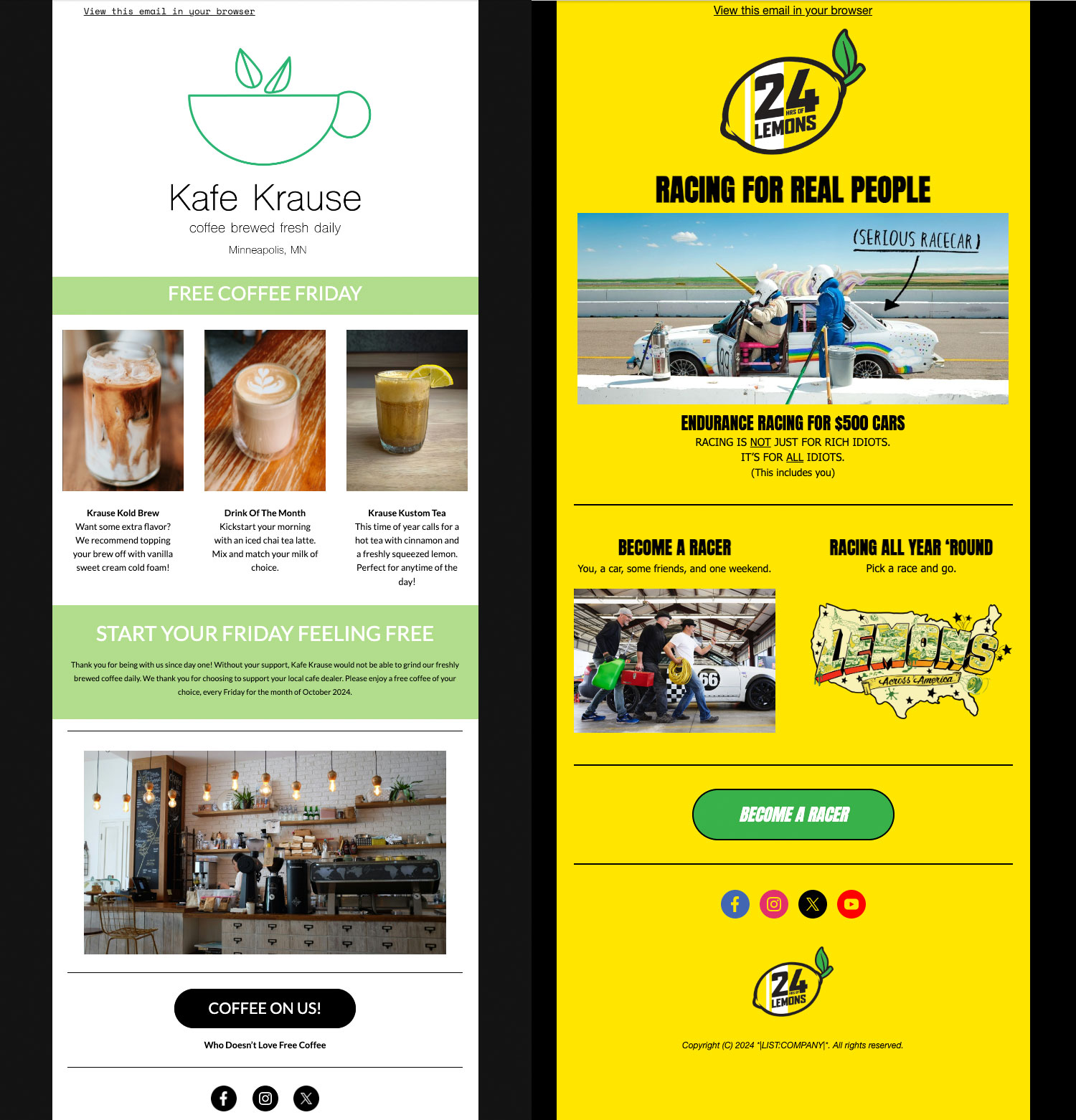
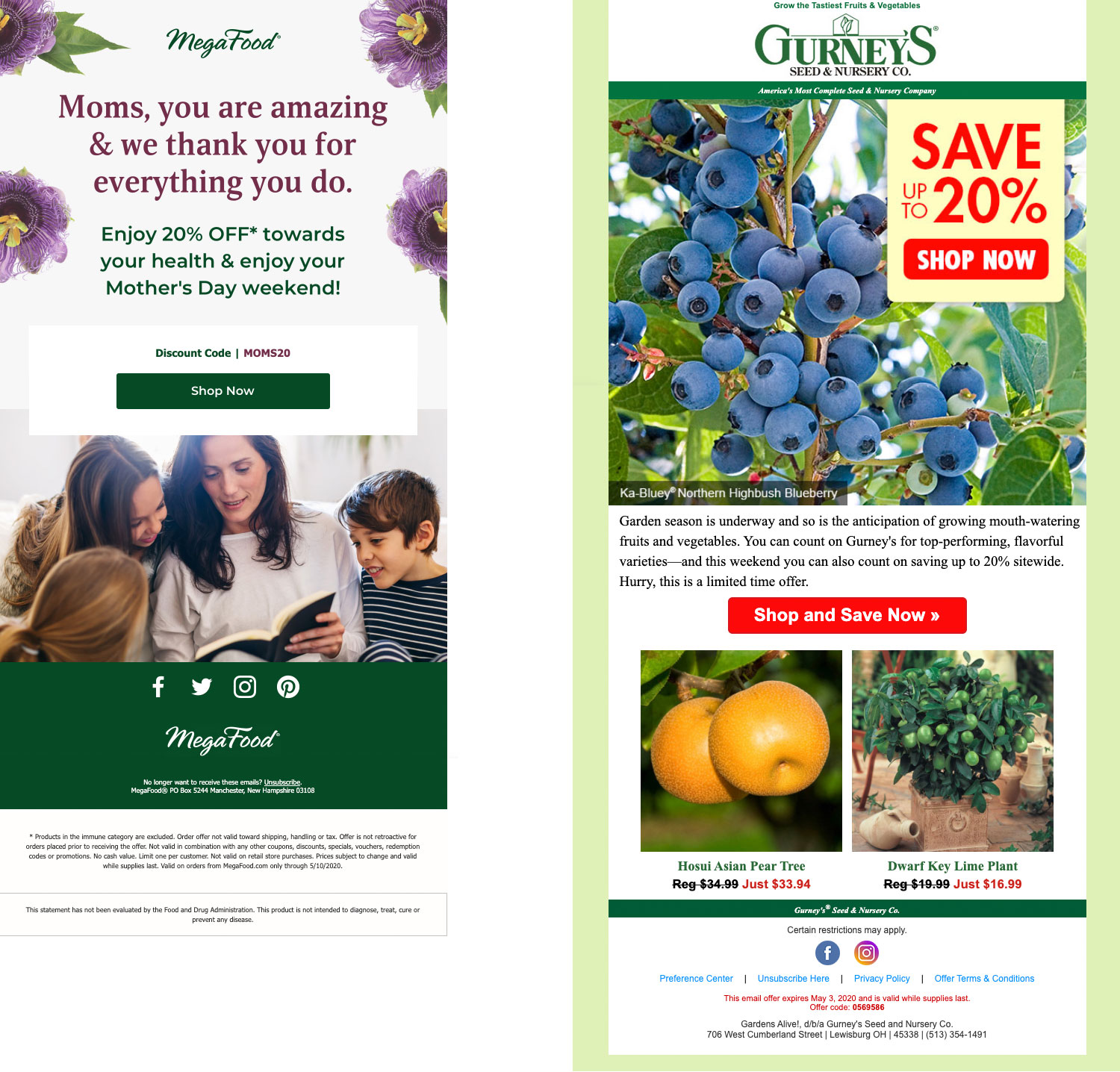
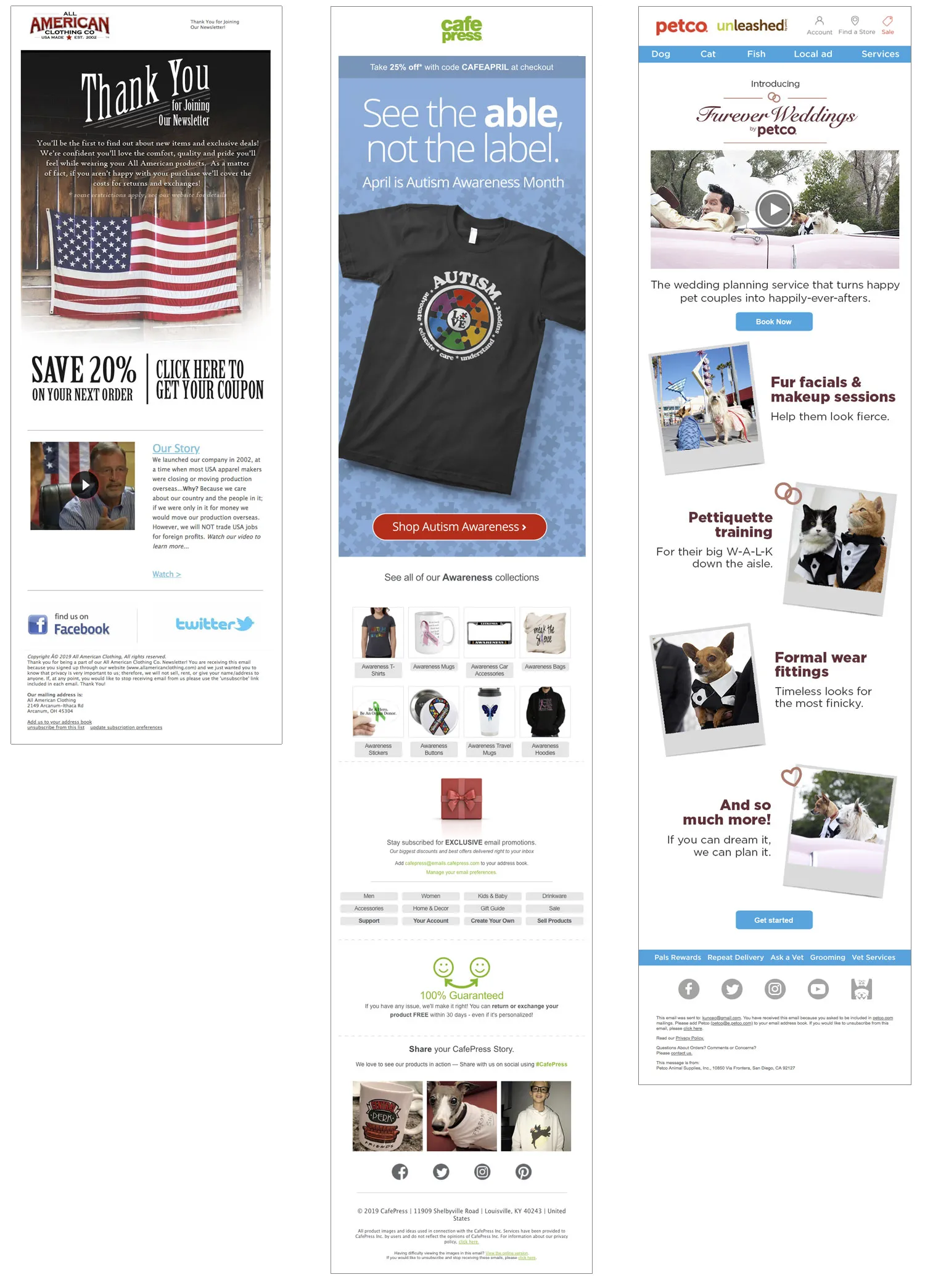
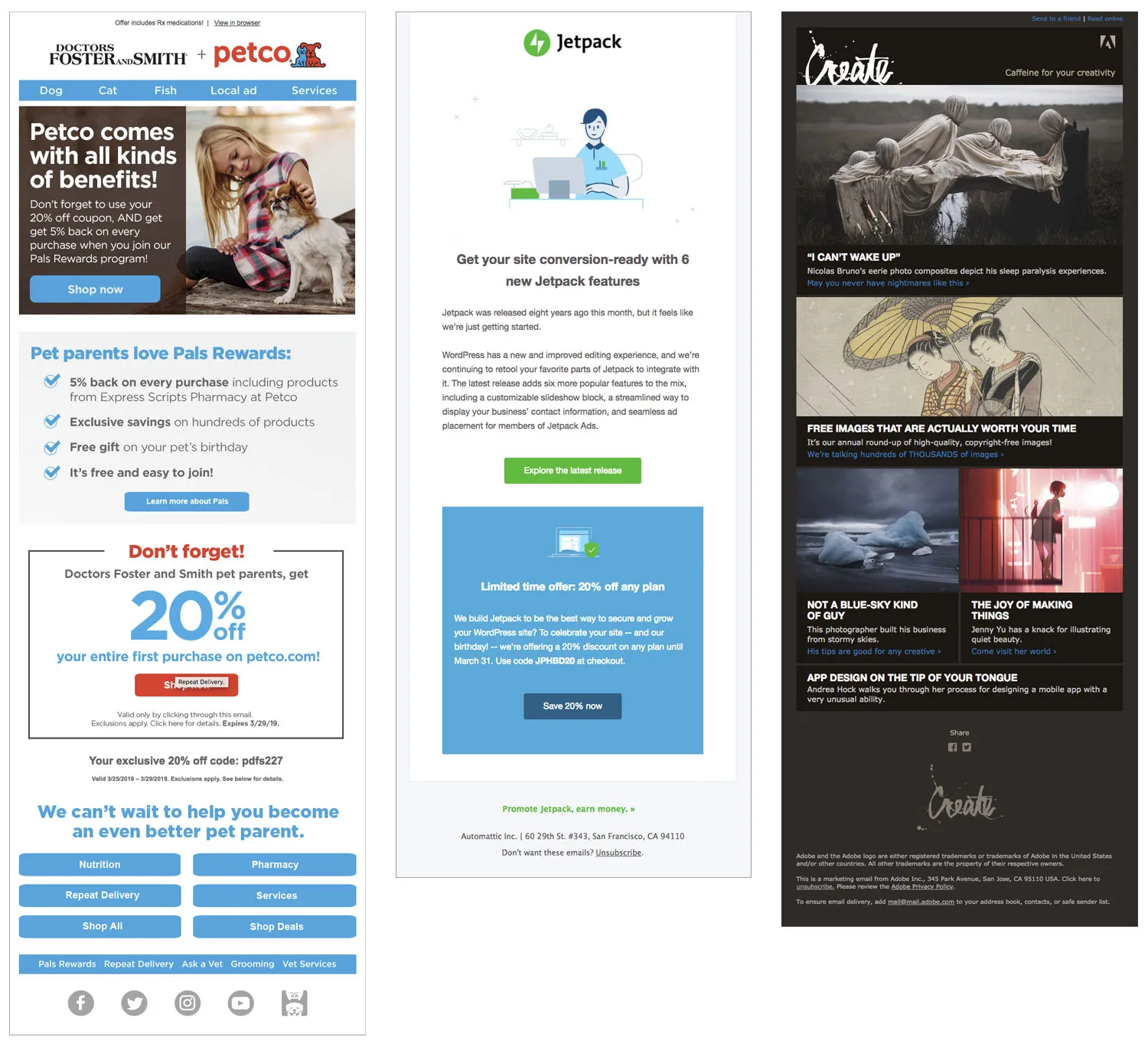
Below are several real email marketing examples from various companies. Notice how each delivers the company’s brand and focuses on one main message. Most use one main image and headline to draw the viewer in and show them where to start.
These examples also benefit from:
- Logo to identify the company
- Brand colors throughout
- Consistent design style and layout
- Consistent typeface
- Lots of photos/artwork
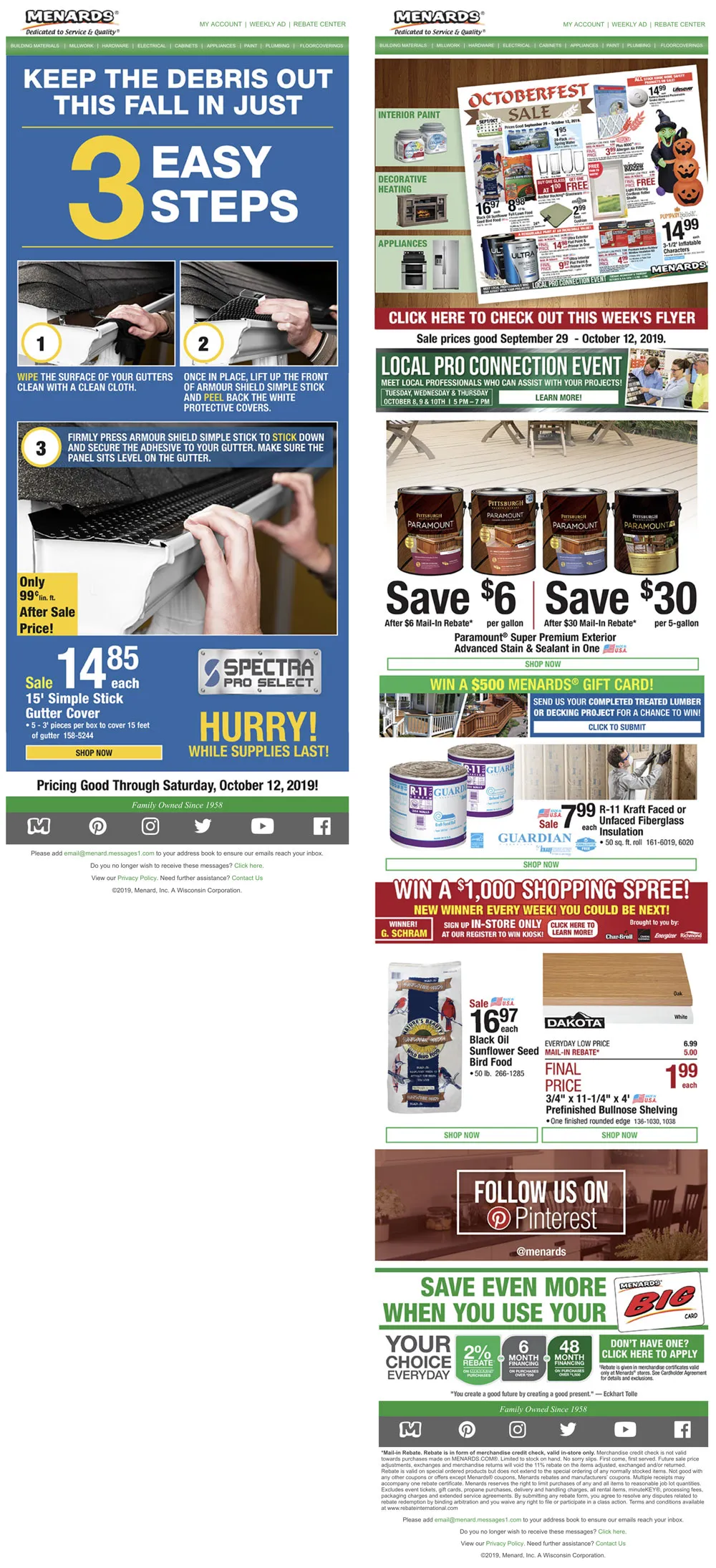
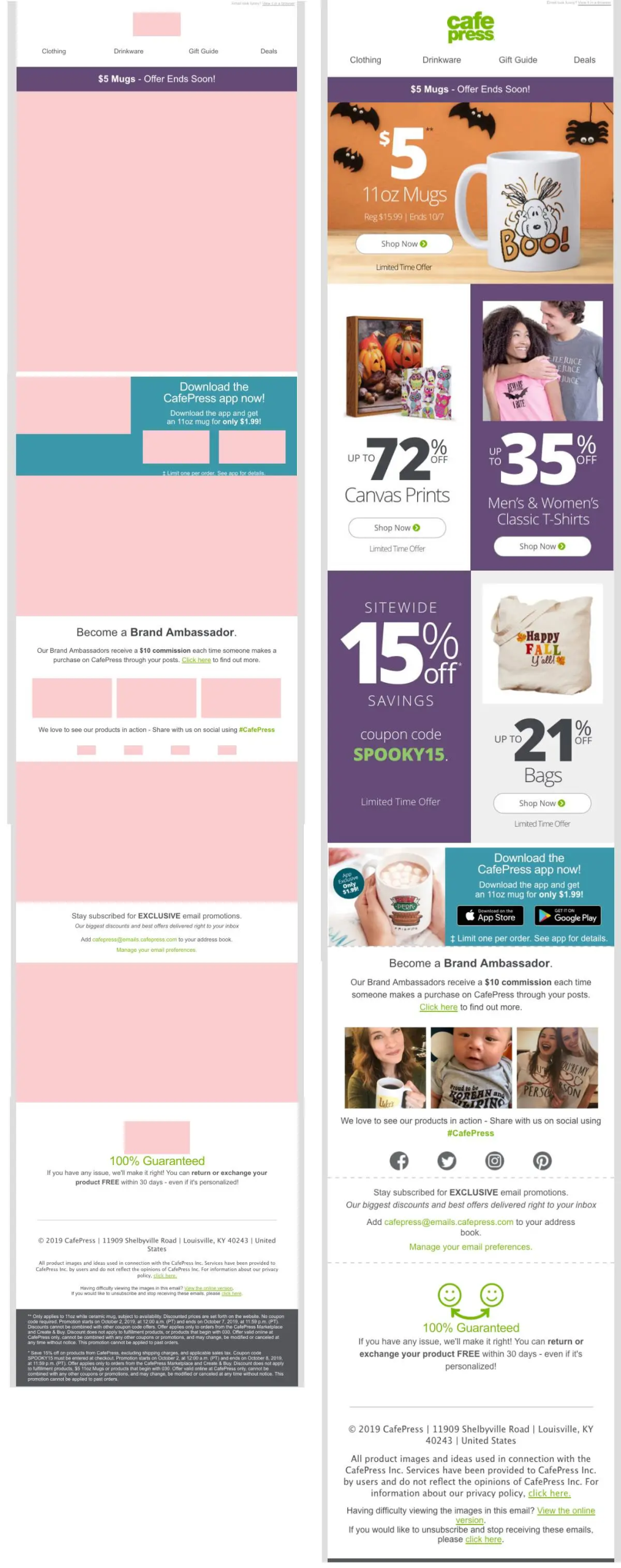
Avoid emails with too many images with your text inside
Here’s what happens to your view if you only use images for your email content. Avoid this by using text for your header and opening paragraph. This will grab your viewer’s attention and get them to either wait for the images to load or click to view them.
Create your email (A step-by-step tutorial)
1. Create your own MailChimp.com account and log in
First, go to mailchimp.com, create a FREE account, and log in. Be sure to save your login credentials. You may want to access your email later for use in your graduate portfolio.
2. Review the MailChimp web-based interface and start designing
I will walk you through the MailChimp web-based email designer in class. The user interface is user-friendly, so you’ll be creating your own emails in no time.
Here’s a tutorial video introducing you to MailChimp
(11:11)
3. Design the email for the client you chose for your Marketing Plan & Timeline
4. Write your email first
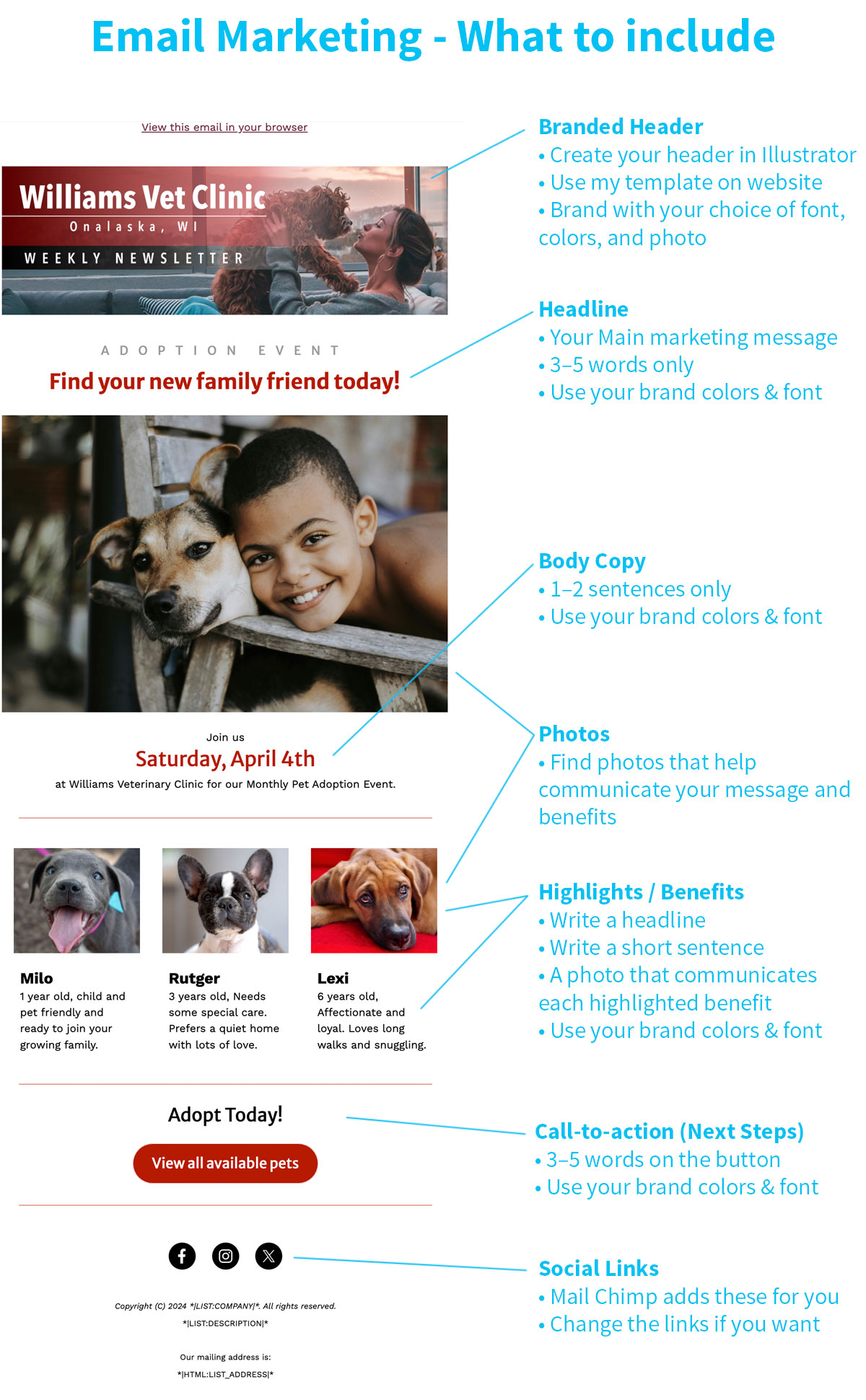
Headline (AI wrote some for you in your Marketing Plan)
This should be about 3–5 words and tell your audience what you are trying to tell them in your email.
Body copy (AI can help you with this)
Then write a few sentences that elaborate on your headline’s message.
Call-to-action (Get this from your Marketing Plan & Timeline)
Lastly, write your call to action. This should come at the end of your email message. What do you want them to do once they read your message? Give them a coupon with 25% off? Send them to your website to find a retailer near them? Ask them to donate to your cause? Send them to a specific page on your website and have them start shopping?
Type these directly into your Mailchimp email.
5. Choose photographs
Once you have defined your message and written your text, find photos that reinforce it with helpful visuals. These photos must help communicate your email’s message to your audience.
Get these photos from unsplash.com, pixabay.com, pexels.com, or AI. You may also use your own photos if they have enough resolution (1200 pixels wide) and help communicate your message.
6. Make your photos web-friendly inside Mailchimp
In Mailchimp, you can optimize your photos to be 1200 pixels wide.
- In your My Files area, select the photo
- Choose Edit from the dropdown menu
- Enter the new width of 1200 pixels and click Save
- That’s it. Now insert that photo into your email.
7. Add a logo to your own header
Use the logo give to you if you chose from the “Clients to Choose From” webs page.
If you’re doing your own client, I’d suggest doing a Google image search and finding your logo. If possible, try to find a transparent version so you can change the background color in your email (if you choose to). When you find your logo, save it to your desktop and then upload it to MailChimp and optimize it to 1200 pixels wide.
Nice work!